[Projector] ASUS Latte L1 projection method
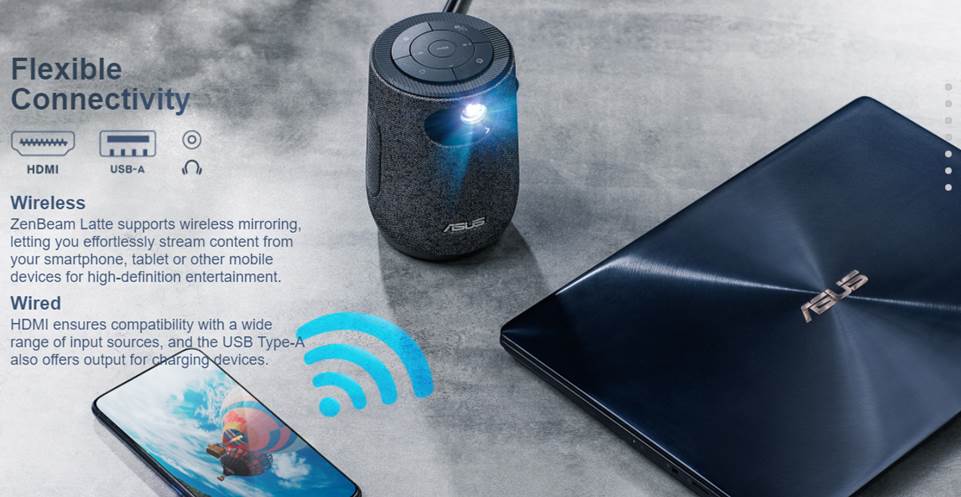
B. Wireless mirroring projection method
2. Phone projection method (wireless mirroring)
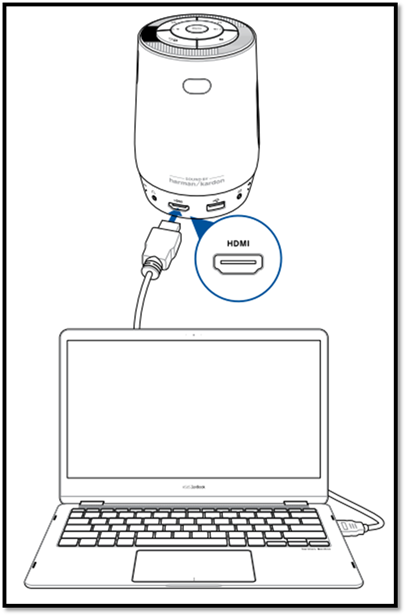
A.HDMI projection method:
1. The HDMI of Latte L1 can be connected to the HDMI on the NB/PC
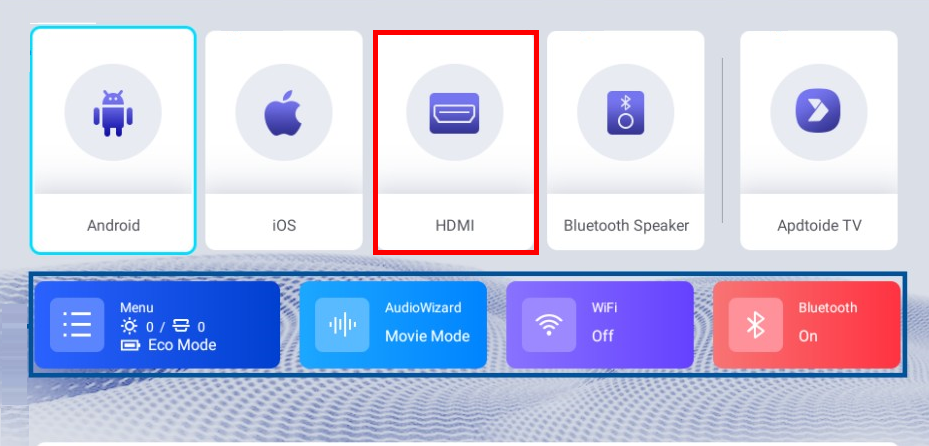
2. Select HDMI from the menu
B. Wireless mirroring projection method :
1. First, both Latte L1 and NB/PC need to be on the same Wifi router
|
NB/PC: wifi: |
Latte L1 : wifi |
|
|
|
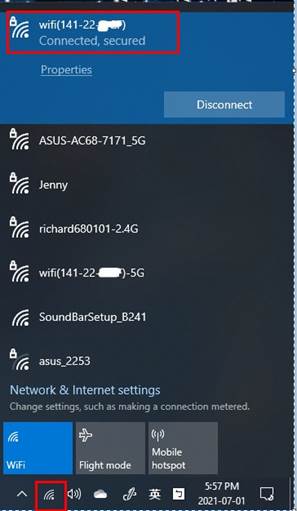
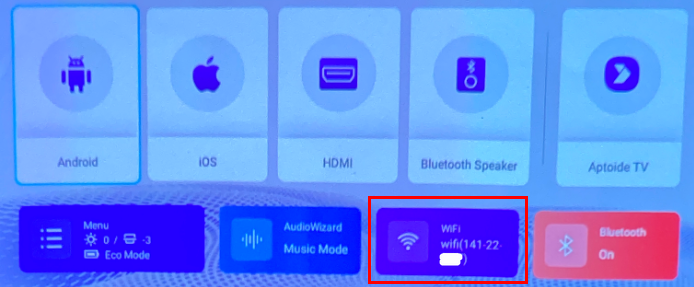
2.Open (Microsoft Edge) Browser for wireless mirroring
3. Select … tool->More tools->Cast media to device
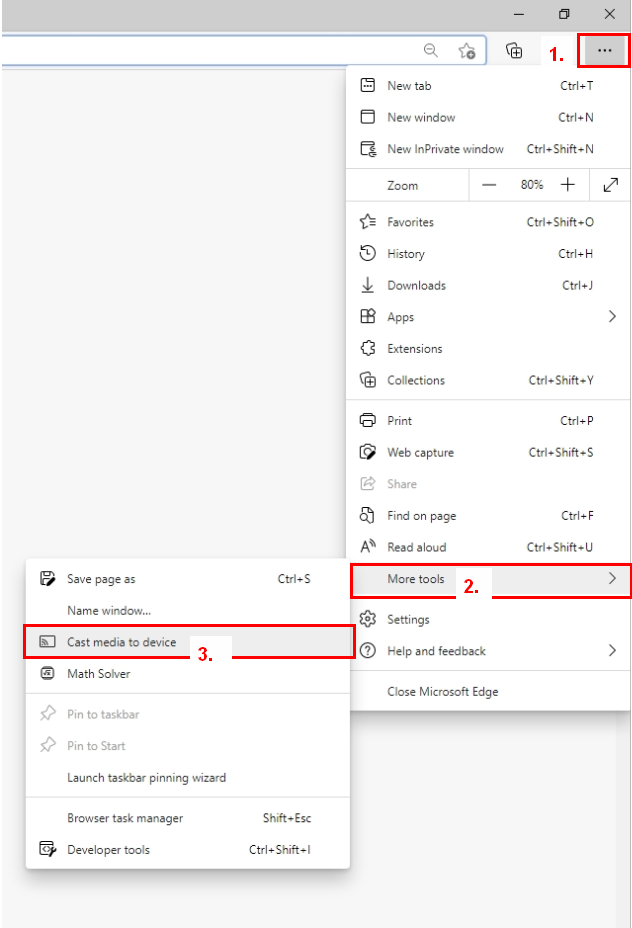
4. Select ZenBeam Latte-81E0 casting
4- 2.select Sources: Cast tab / Cast desktop / Cast file
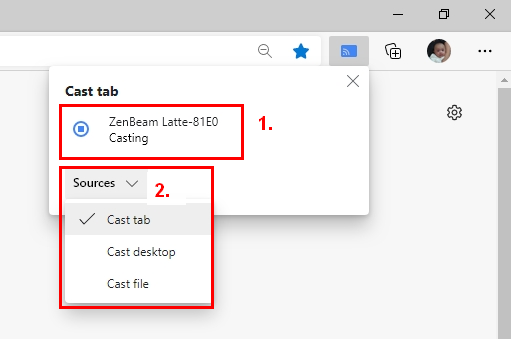
Note: If you change the "source", it is recommended to re-click ZenBeam Latte-81E0 Casting; it can solve the problem of switching display
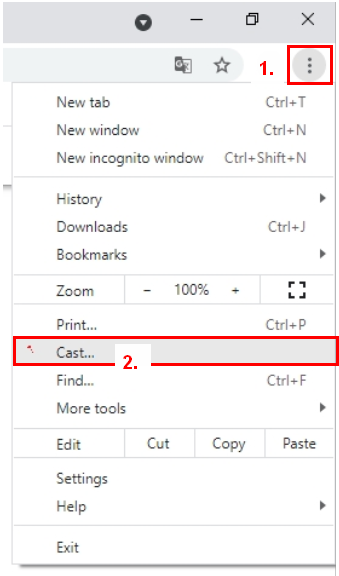
1. Or Select  Google Chrome Browser for wireless mirroring
1. Select tools… to Cast…
4. Select “ZenBeam Latte-81E0 Casting”
4-2. Select Sources : Cast tab / Cast desktop / Cast file
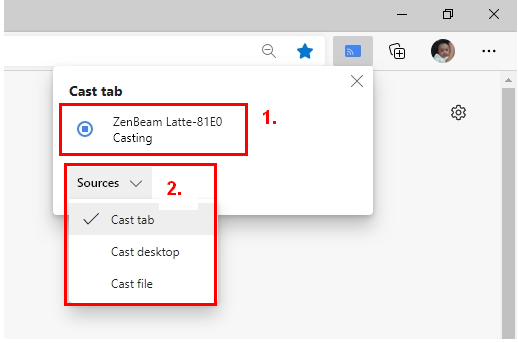
Note: If you change the "source", it is recommended to re-click ZenBeam Latte-81E0 Casting; it can solve the problem of switching display
2. Phone projection method (wireless mirroring)
*iOS V9.0 (Or a newer version) .
1. First, both Latte L1 and IPhone need to be on the same Wifi router
|
iPhone :wifi: |
Latte L1 : wifi |
|
|
|
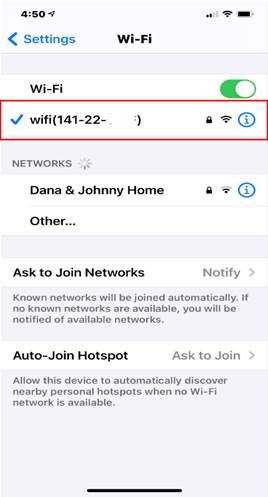
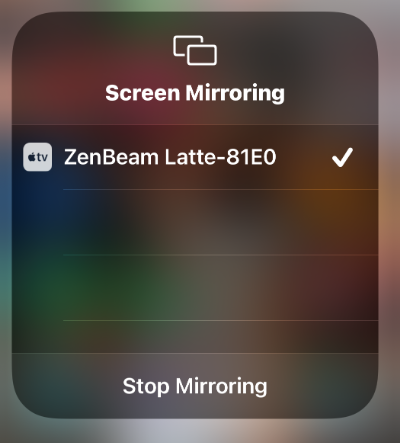
2. Swipe down from the top of the screen, and select "Screen Mirroring"
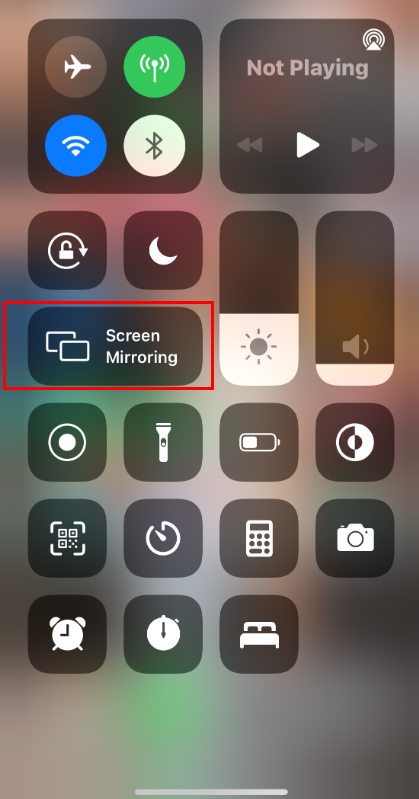
3. Select ZenBeam Latte-81E0 or Stop Mirroring
*Android V5.0 (Or a newer version) .
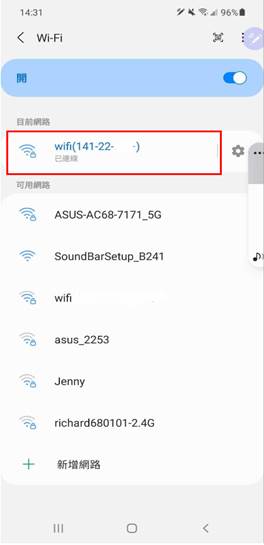
1. First, both Latte L1 and Android Phone need to be on the same wifi router
|
Android phone : wifi: |
Latte L1 :wifi |
|
|
|
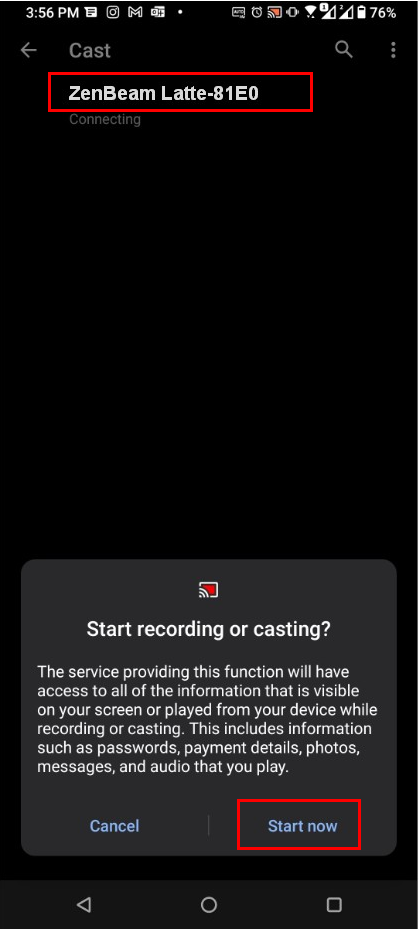
2. Swipe down from the top of the screen, and select "Screen Cast"
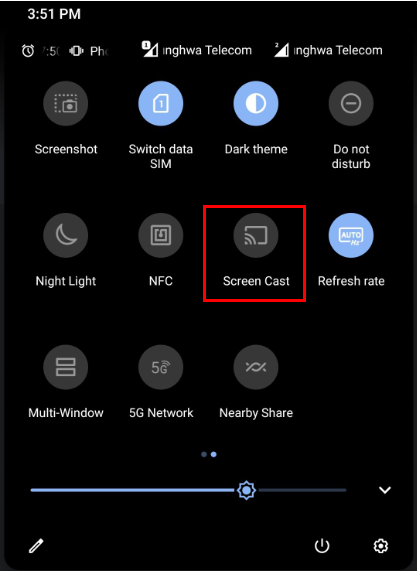
3. Select ZenBeam Latte-81E0, and select “Start now”